Back to Docs
Creating a New Listing
| 1. Getting Started To get started, ensure that you are in the admin mode of your app. If you haven't requested the admin mode of the app, see the instructions here to request access. Click on the + button at the bottom that says "New Listing" | 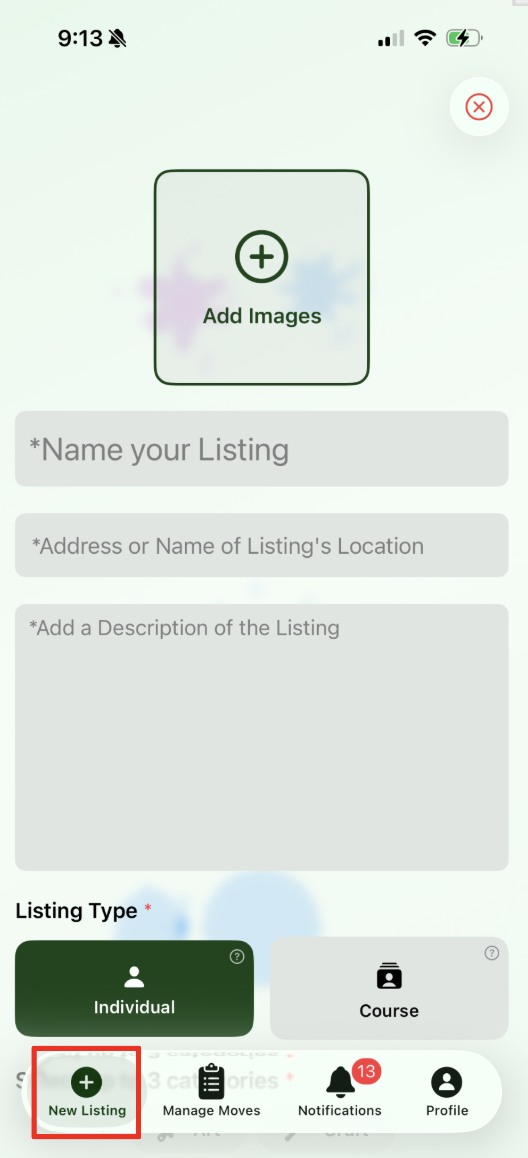 |
| 2. Description Step This is where you fill out descriptive information of your event: Images, Title, Location, Category, Expertise Level, etc.... Moves offers two listing types: - Individual listings are events booked on a one-off bases (a painting class Sunday from 2pm-4pm, cocktail making class at 7pm, etc...) - Course listings that are booked as a package (5 week cooking class, 2 day painting workshop). | 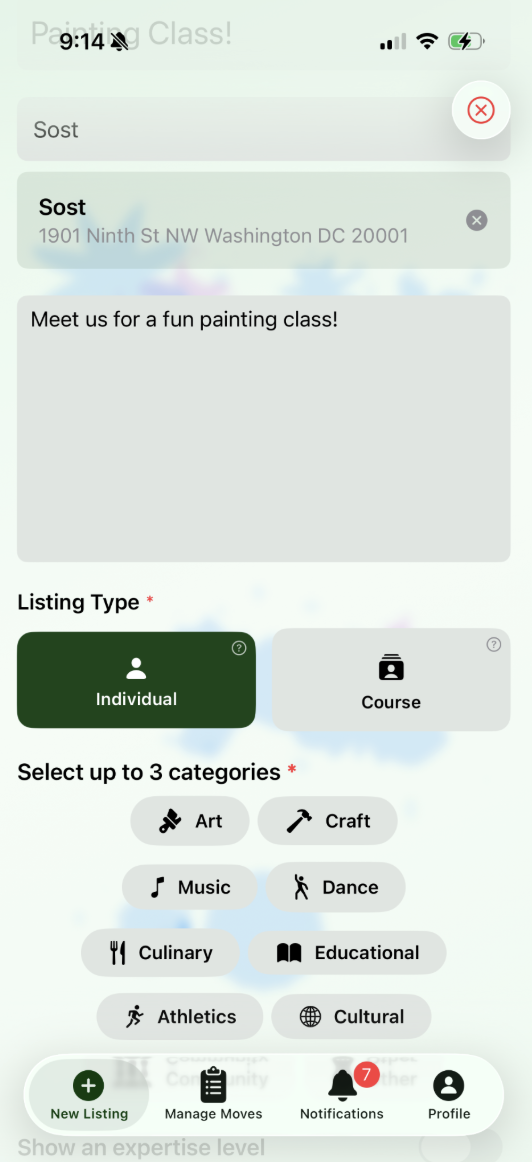 |
| 3. Scheduling Step We offer three ways to schedule your listing: - Dates: You set individual dates - best for one-off events. - Recurring: You want an event with a repeating weekly schedule - best for events that occur at a regular, weekly or monthly cadence. - Hours: You set your available hours and event duration, application auto generates slots - best for businesses with set hours and numerous slots in a day. | 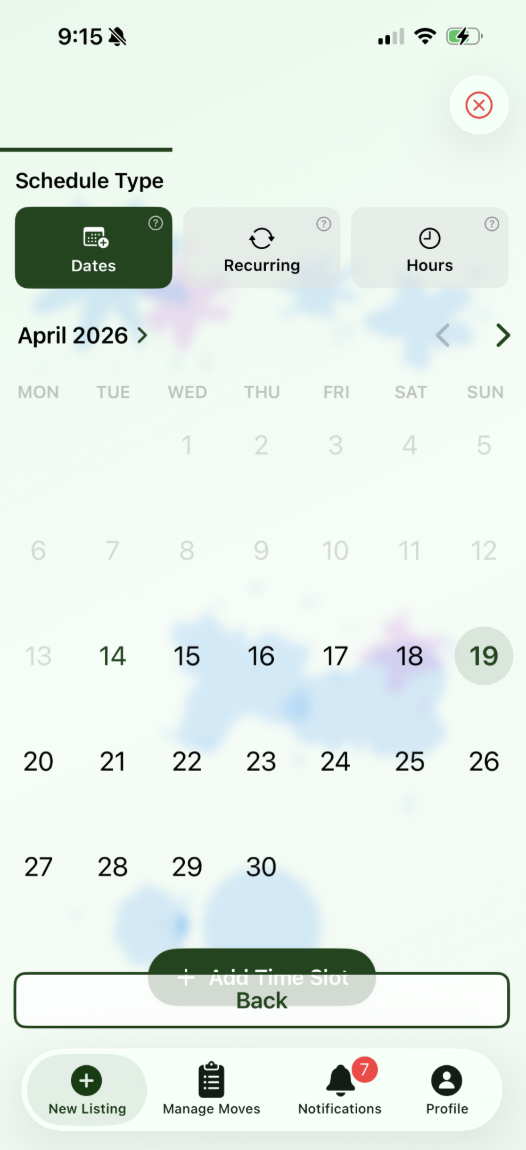 |
| 4. Price Step Enter price here or set it to free. Only hosts that have been onboarded to Stripe can charge for a listing (instructions here). We offer 3 cancellation policies to fit all needs: - Flexible: Allows hosts to cancel your event for a refund at any point. - Moderate: Full refund if cancelled 24+ hours more than the user's start time. No refund if cancelled less than 24 hours. - Strict: All sales are final. Note that as a host, you have full discretion to cancel a booking and issue refunds on a case-by-case basis. | 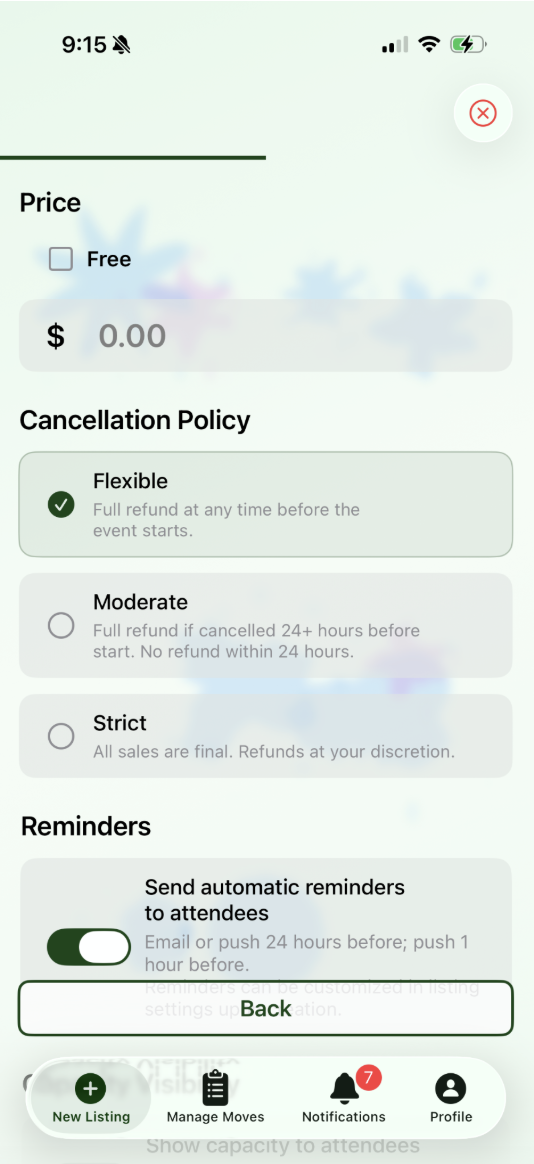 |
| 5. Price Step - Continued - Reminders: Choose to automatically send reminders to users prior to listing start. - Capacity Visibility: Allows users to see how many spots are still available for your event. | 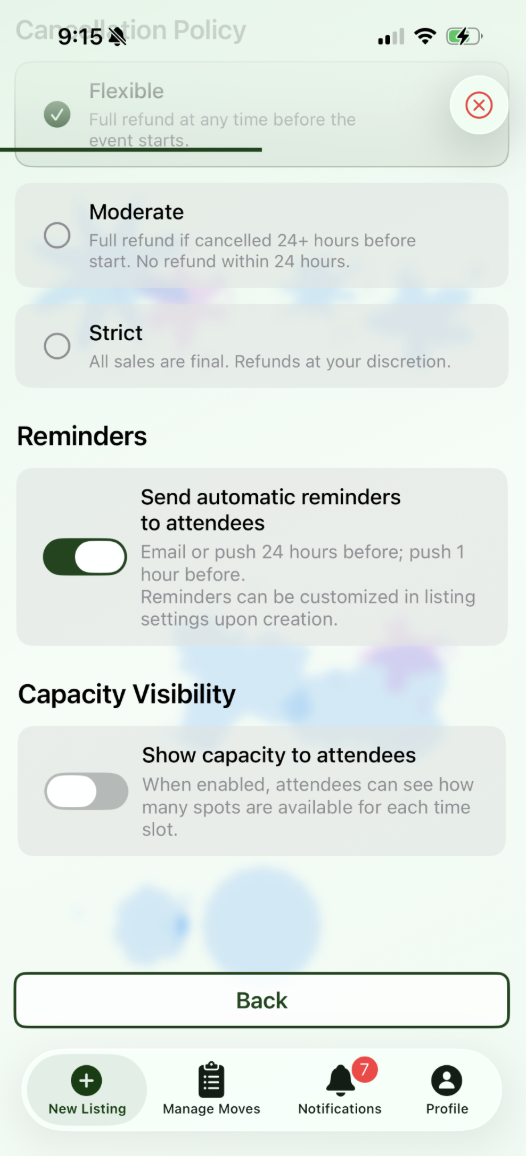 |
| 6. Booking Information Step - Contact Methods: Contact methods available to users upon booking. This is required. - Links: Links visible to users upon booking. - Information for Booked Users: Information that appears for users upon booking your listing. This typically includes things like what to bring, FAQs, parking/transportation information. | 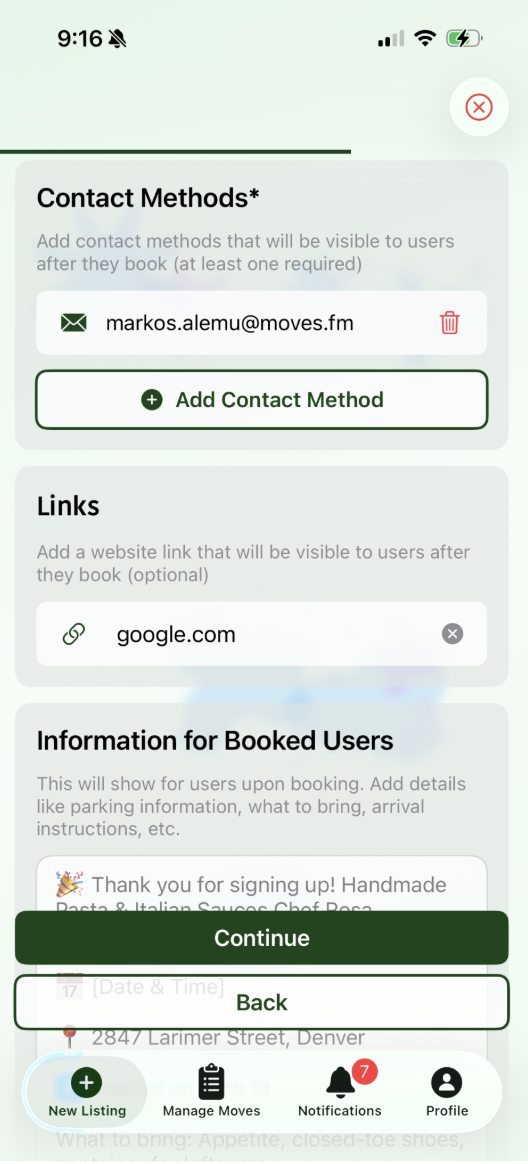 |
| 7. Final Review Step This final step summarizes the listing you created. You can choose to have this listing be immediately visible upon hitting submit. | 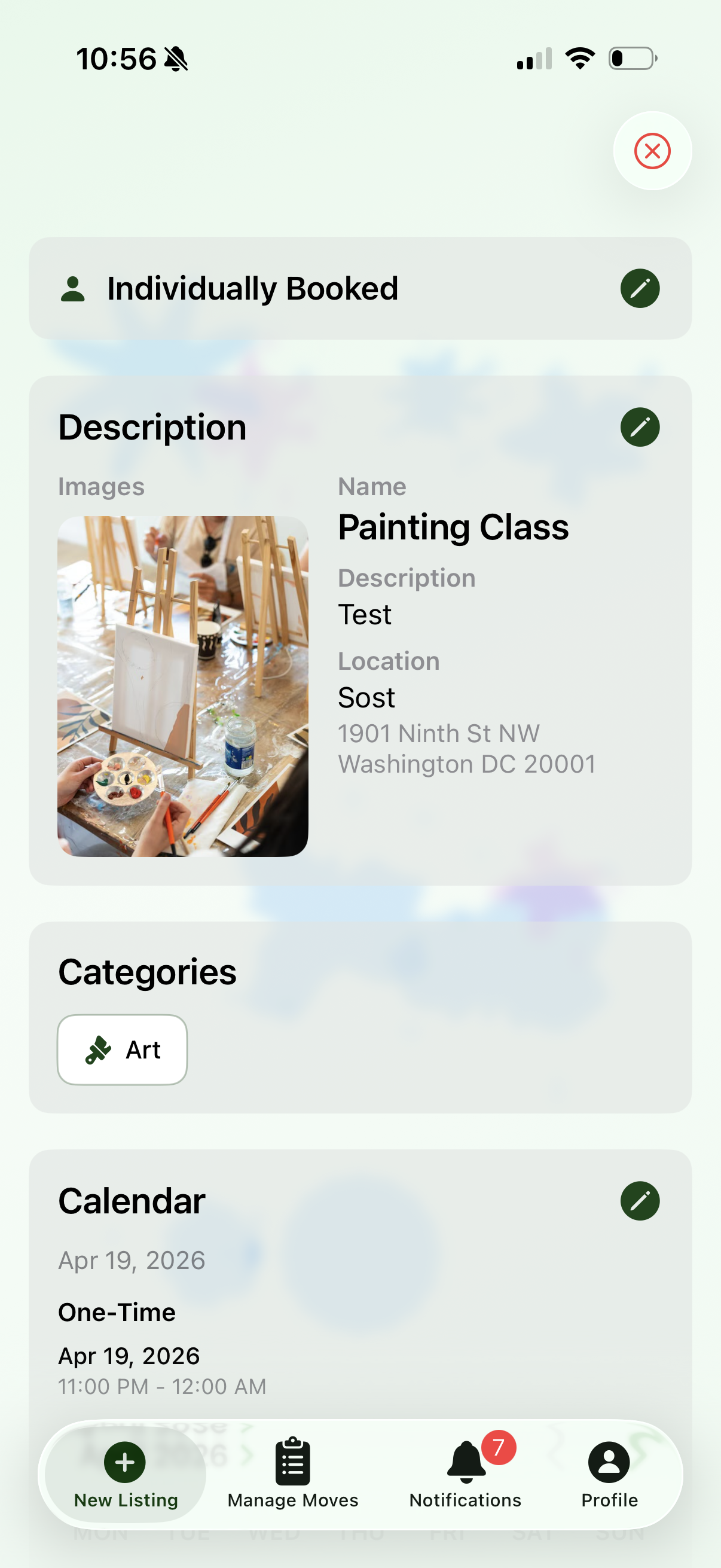 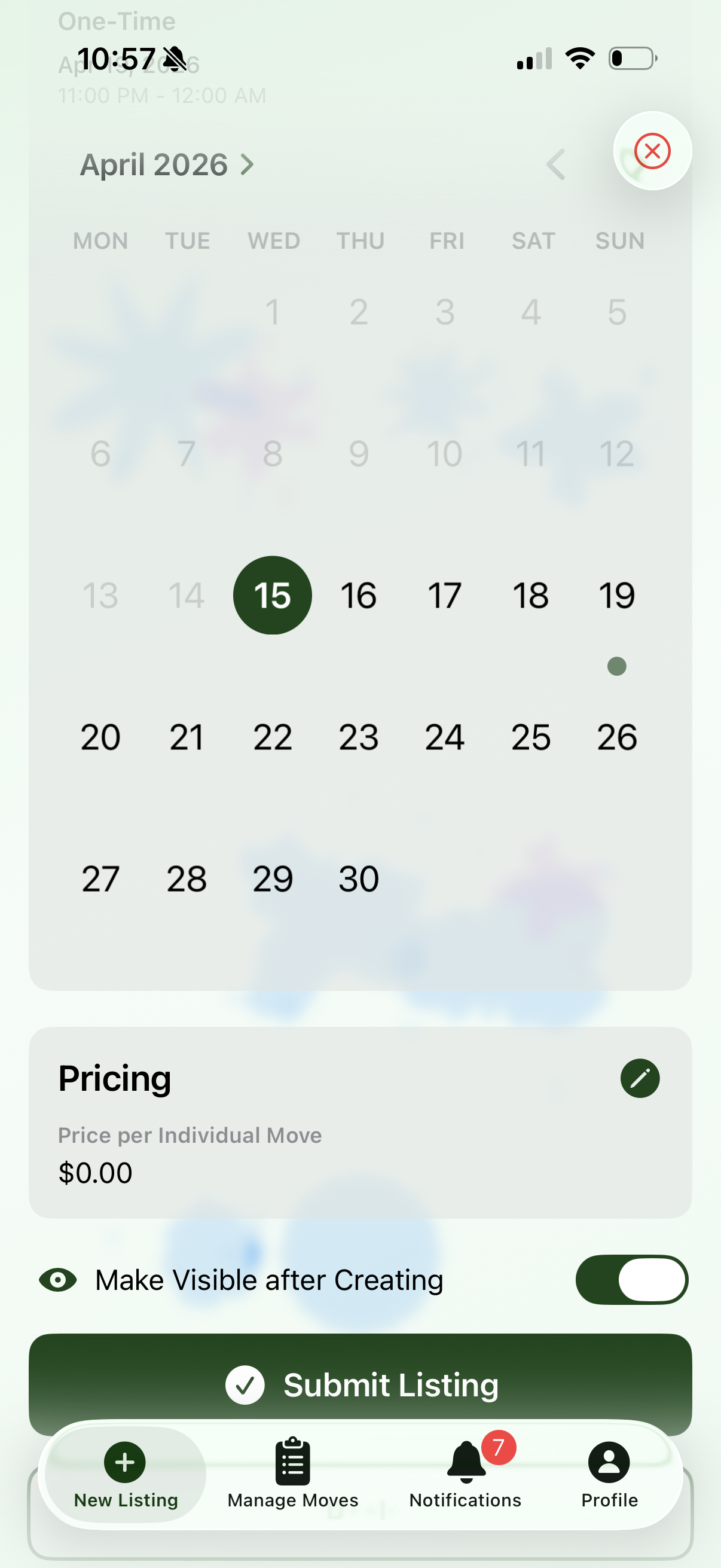 |