Back to Docs
Saving Drafts and Duplicating Listings
When creating a Move, you can save a draft of it to finish editing and submitting later.
| 1. During your create listing process, tap the red X button and tap "Save as Draft" | 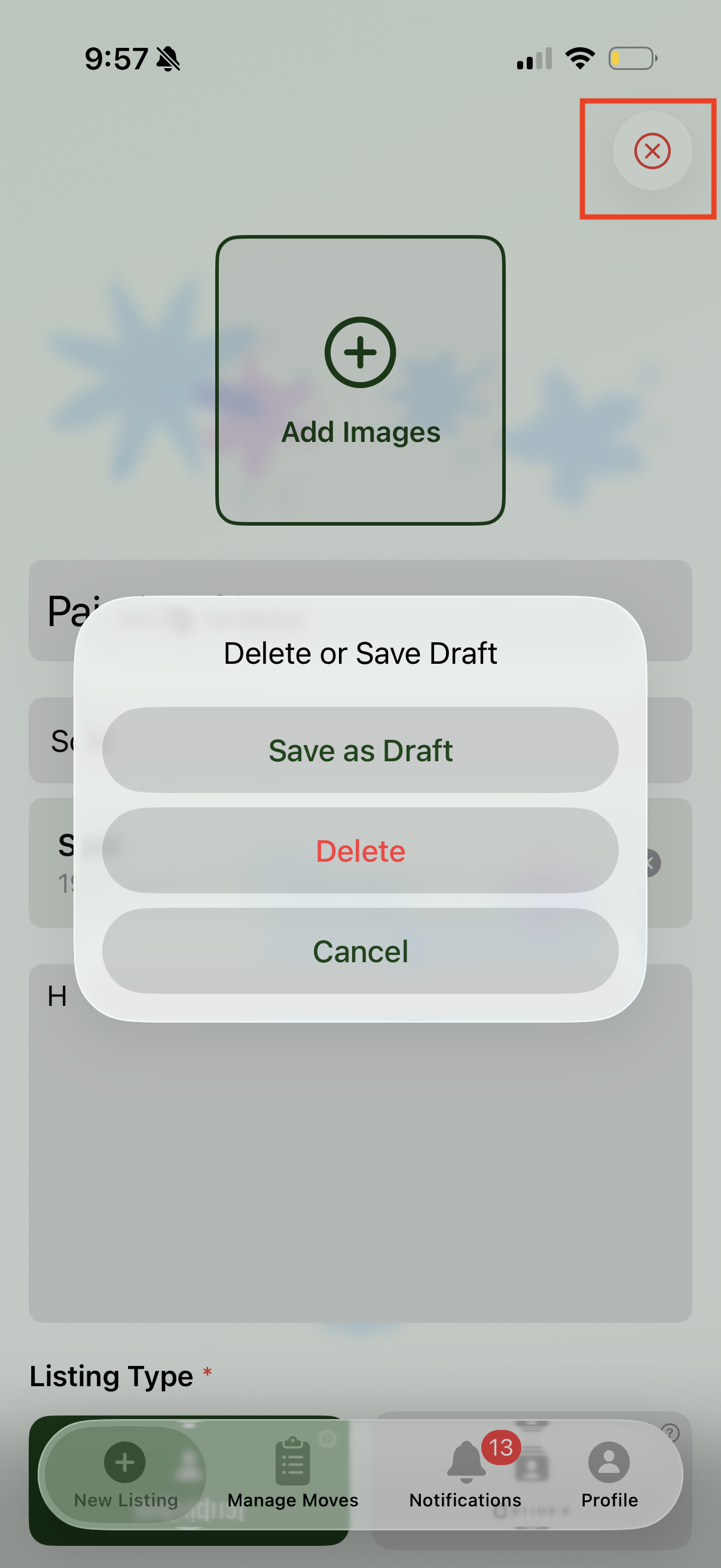 |
| 2. To pick a Move in your drafts, navigate to "Manage Listings" at the bottom toolbar and tap the Archive icon on the top right. | 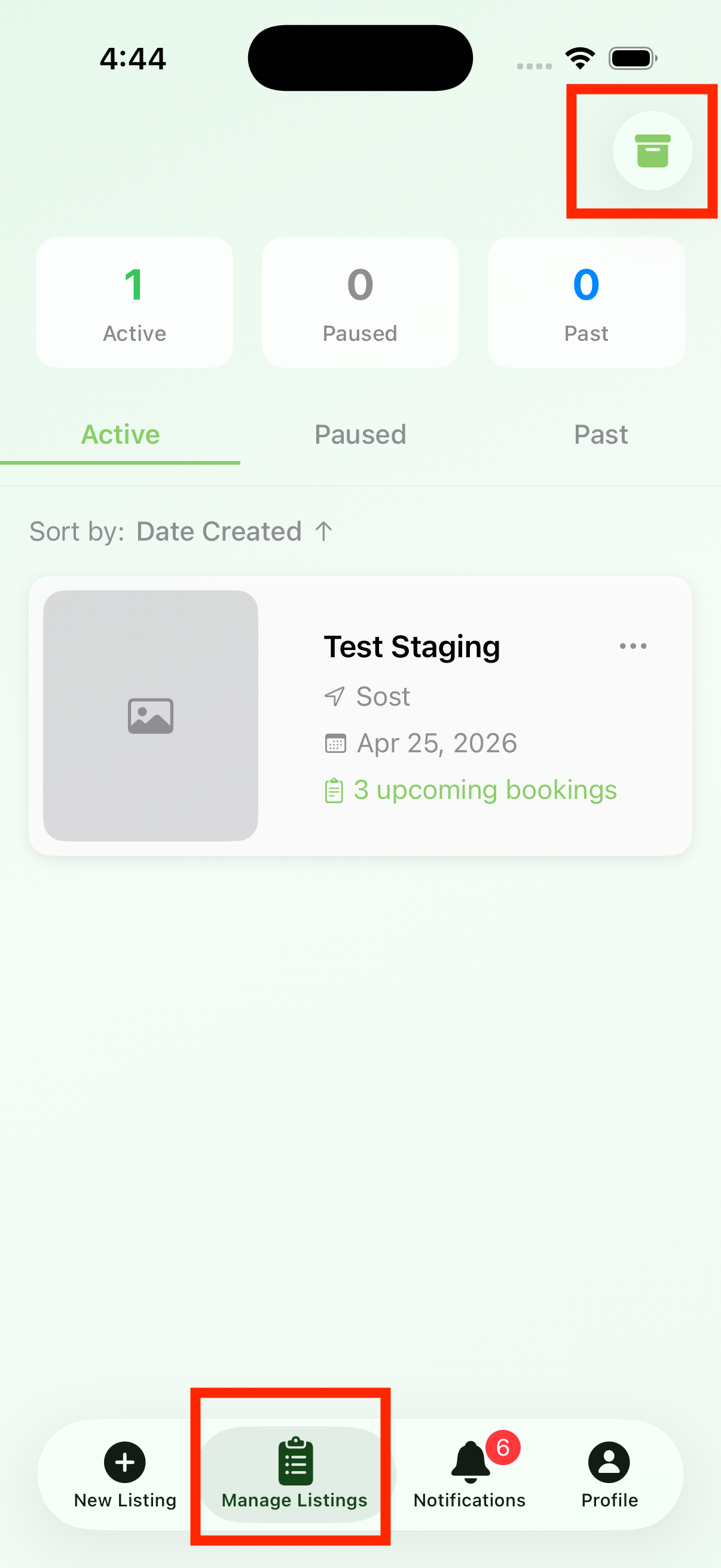 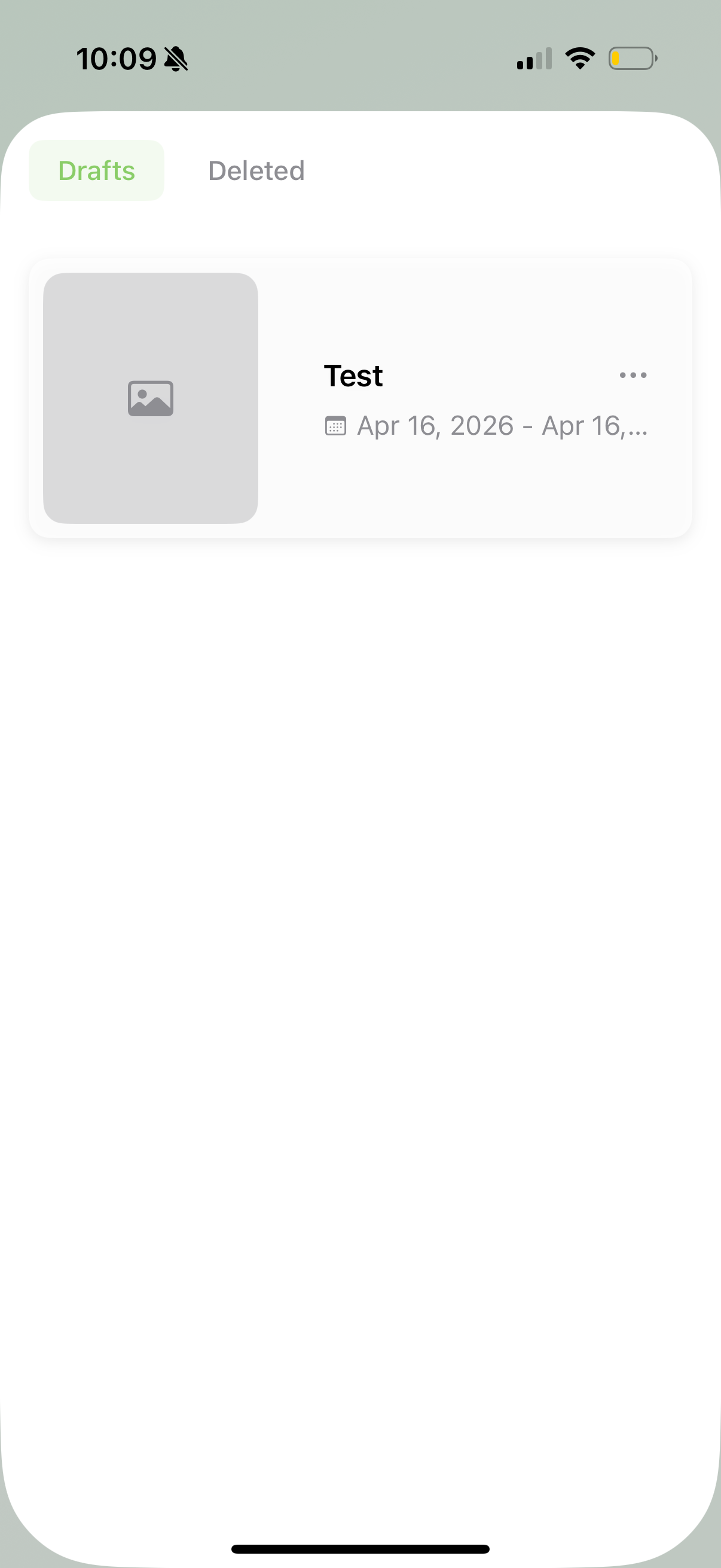 |
| 3. Tap the draft listing to pick up where you left off. You can continue with the normal listing creation process or tap the red X to save the draft or discard the changes. | 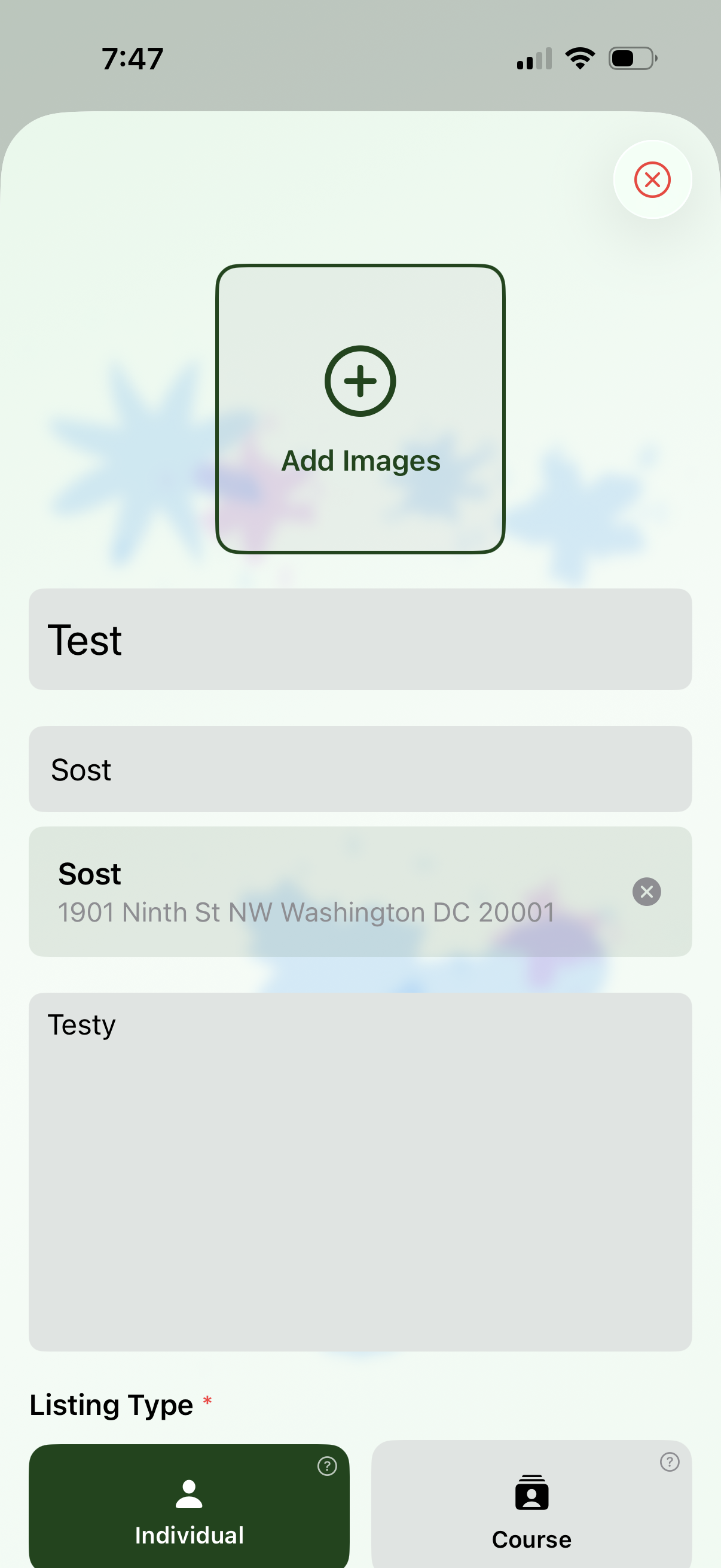 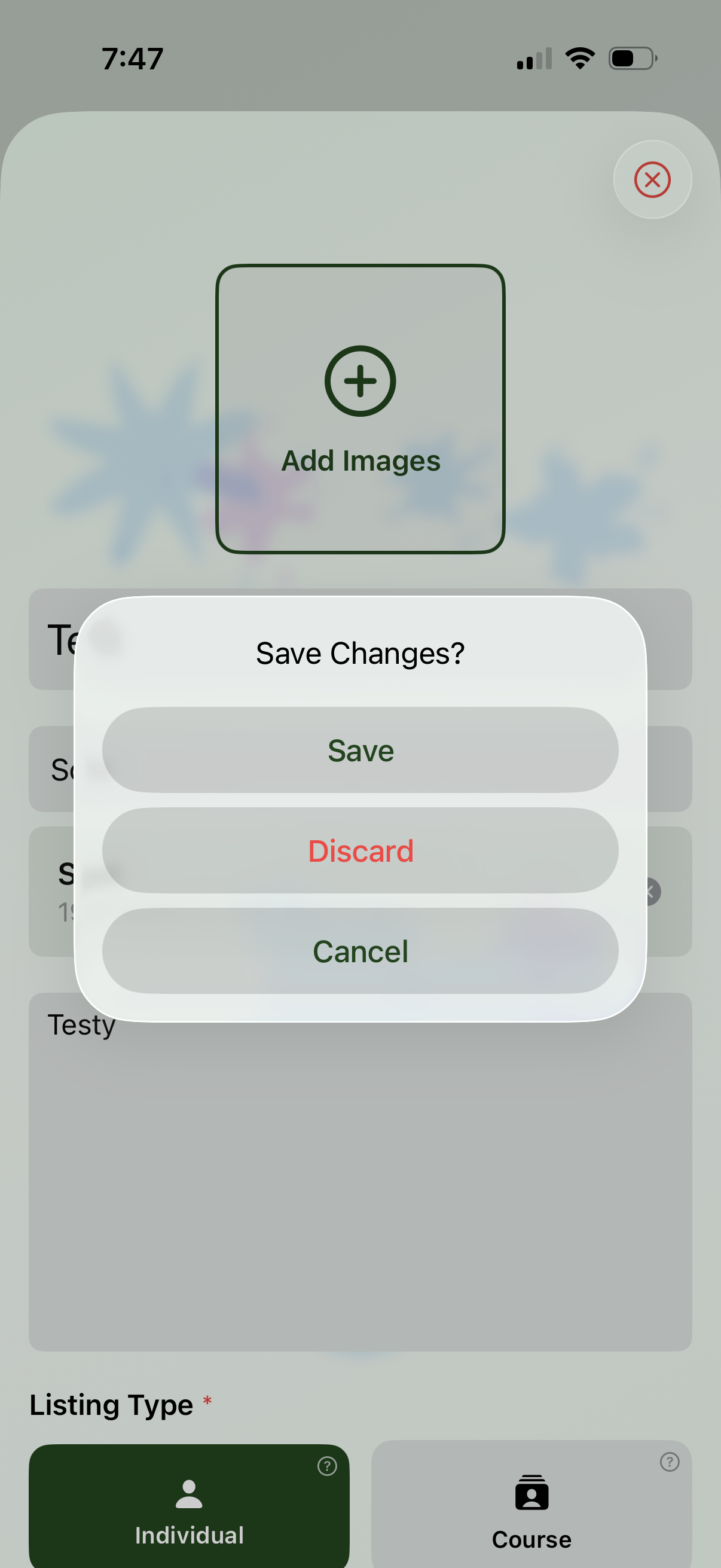 |
| 4. To duplicate listings or drafts, tap the 3 button menu to the right of their card and then tap "Duplicate Listing/Draft". This will open up the listing creation flow where you can either re-submit or save the listing as a draft. | 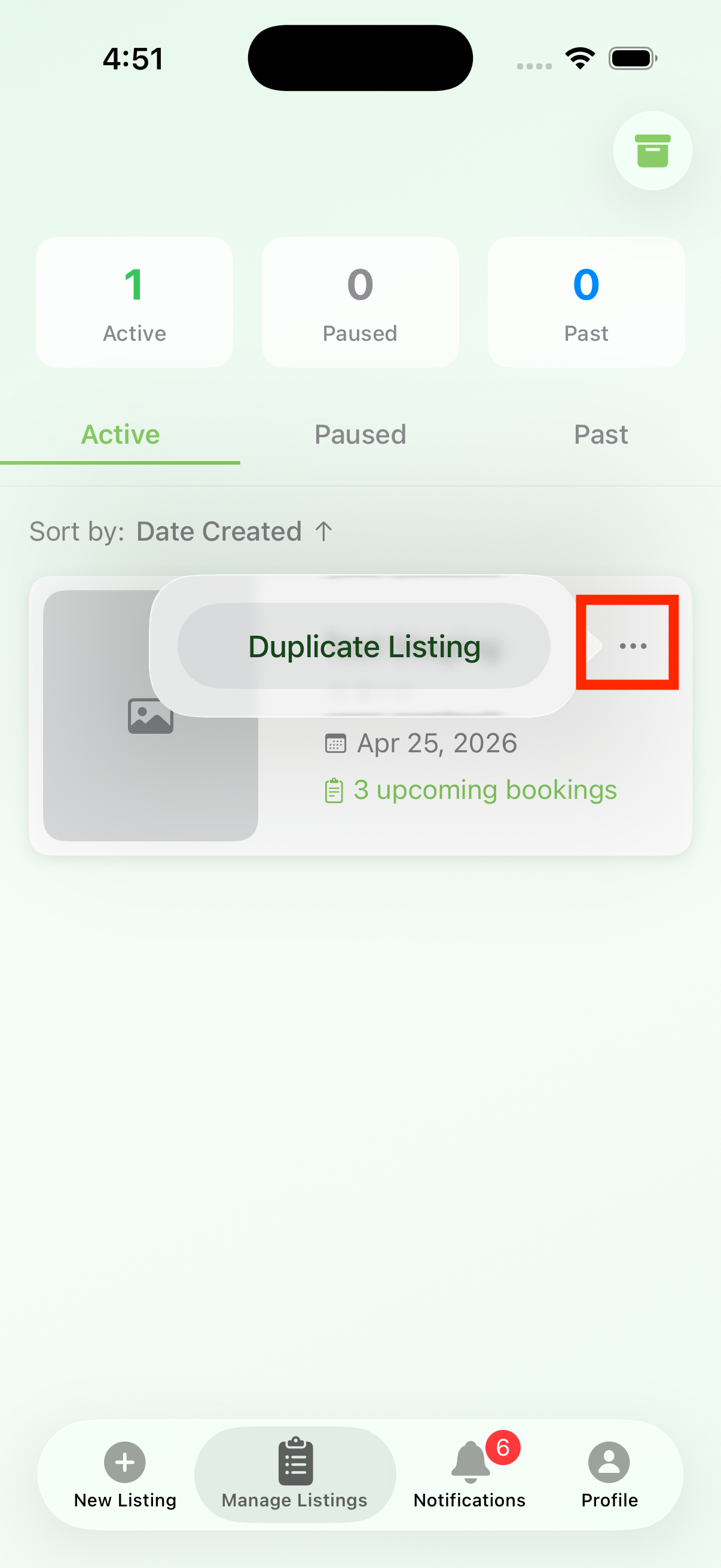 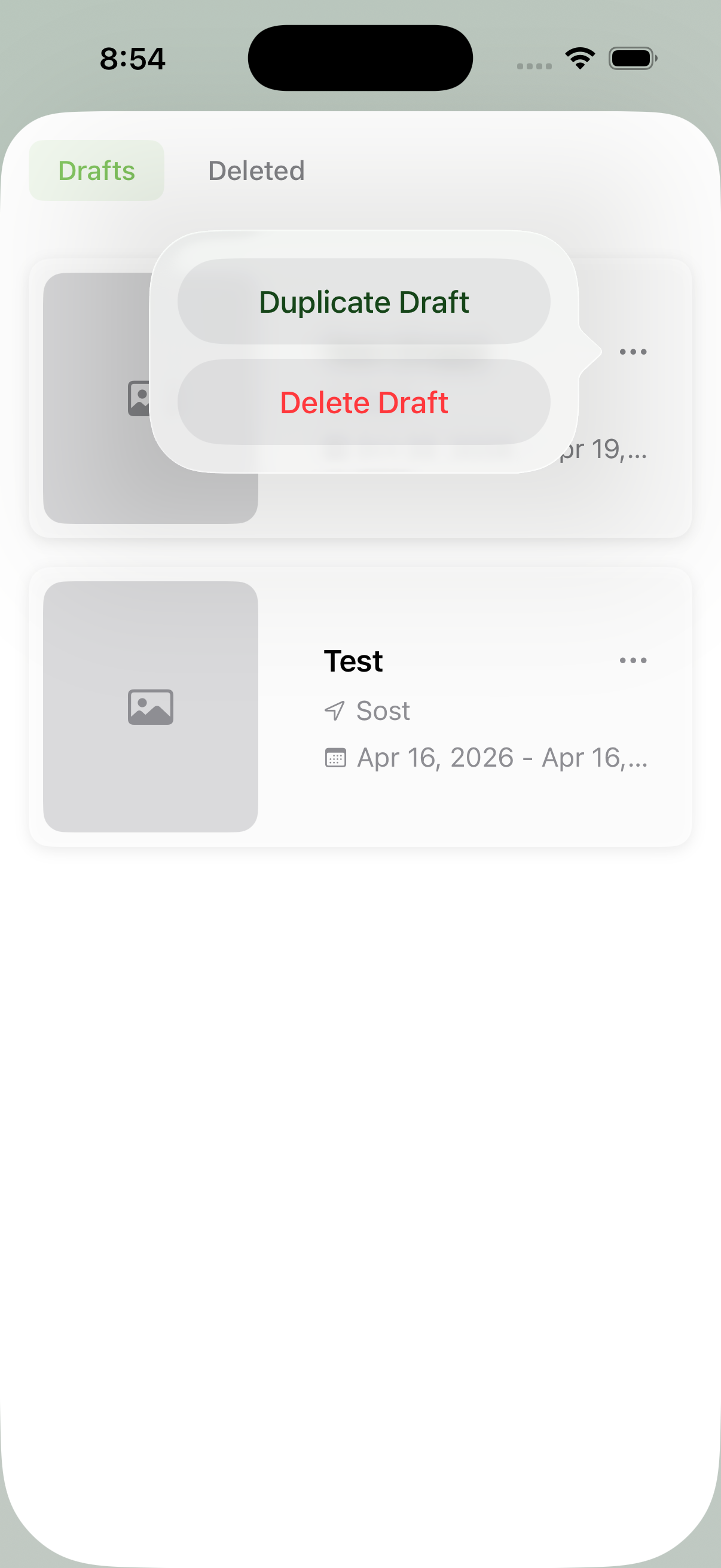 |