Back to Docs
Setting Up Stripe
To set up Stripe, you must have been granted access to the app's admin mode. Follow the instructions here if you haven't done so.
| 1. In the bottom toolbar, tap the "Profile" button. | |
| 2. Tap Host Center → Seller Dashboard | 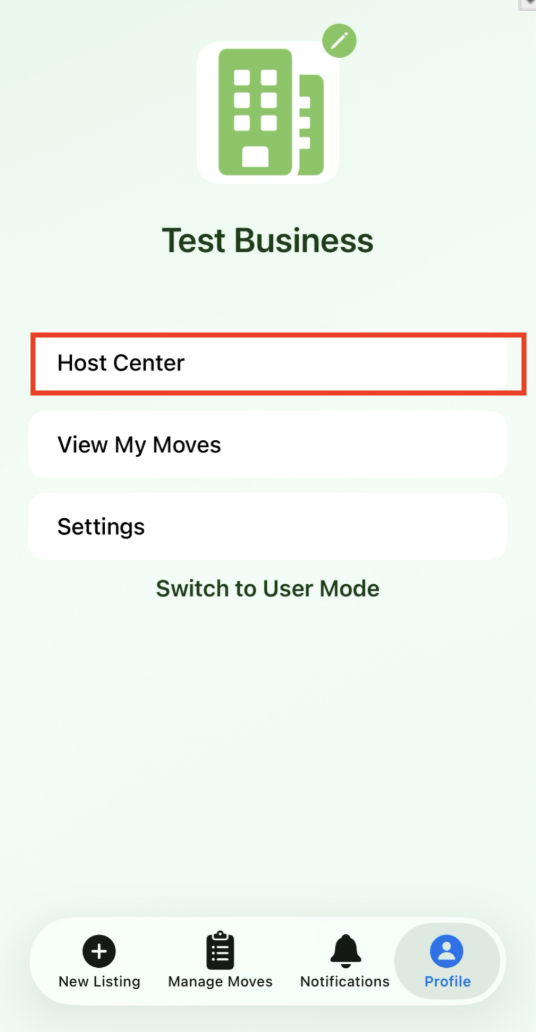 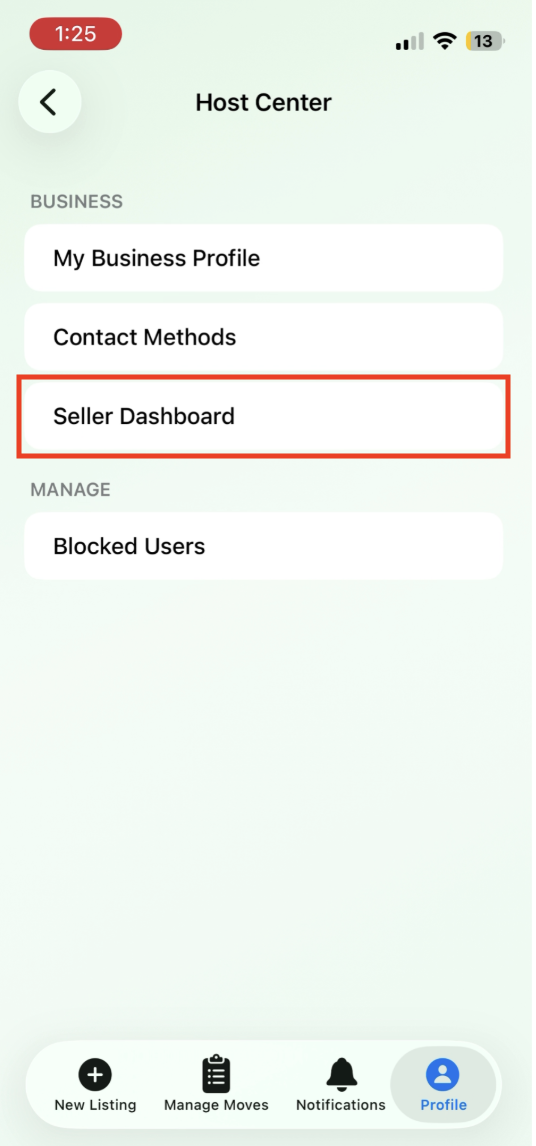 |
| 3. Click Connect Stripe Account. You'll have to sign in or sign up for Stripe via your email address and phone number. Enter in the verification code to your phone number. | 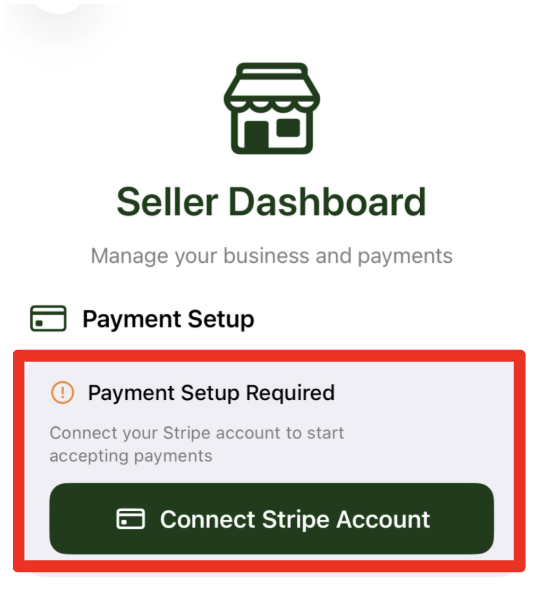 |
| 4. Enter Business Details | 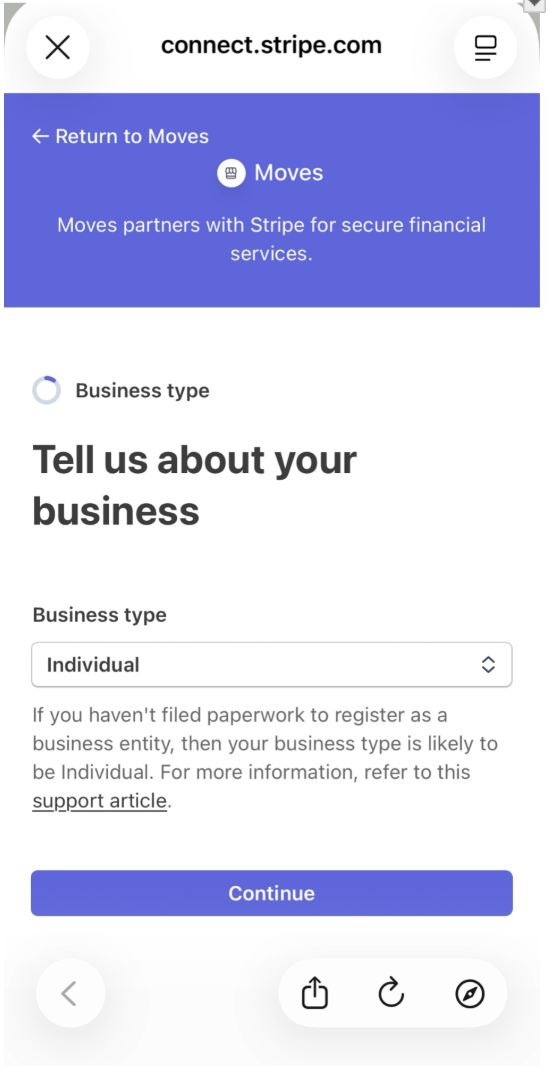 |
| 5. Enter Personal Details | 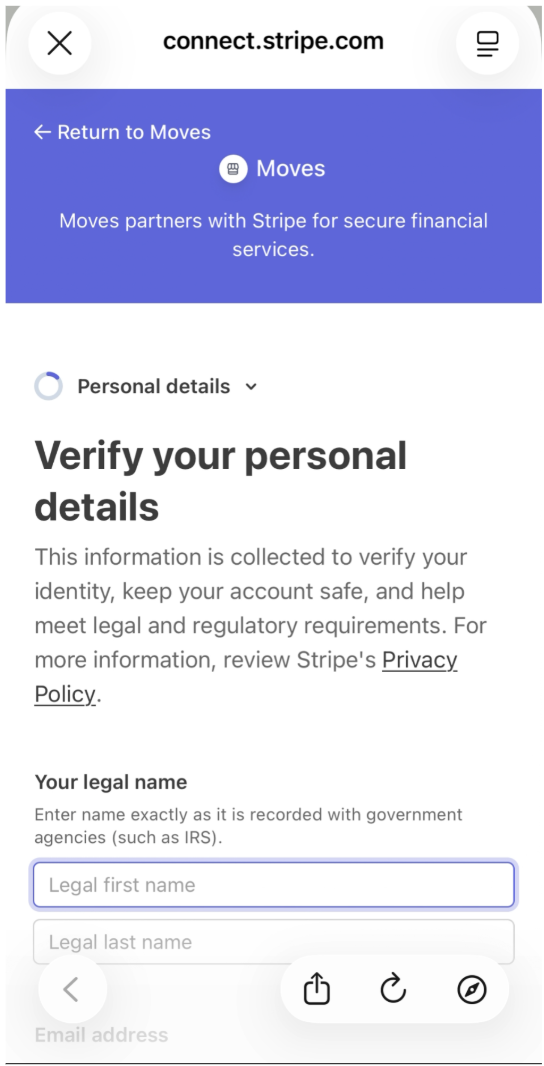 |
| 6. Continue entering Business Details | 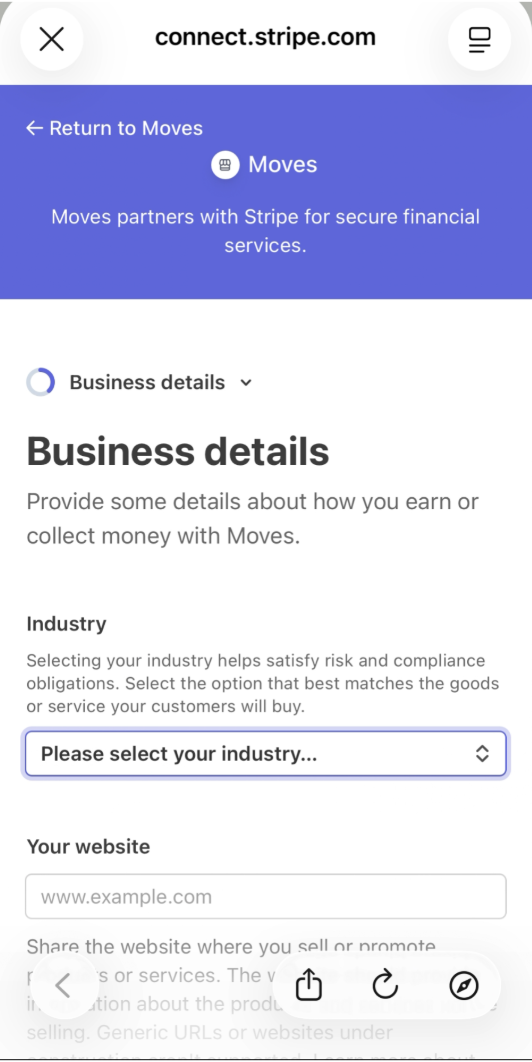 |
| 7. Connect a Bank Account by selecting your banking provider | 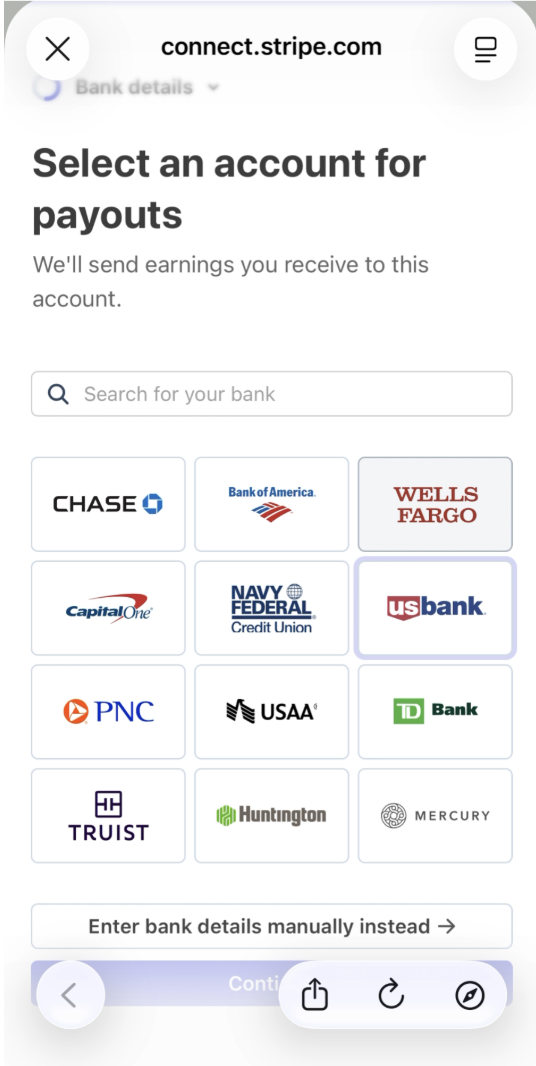 |
| 8. On the Review and Submit screen, verify your information and press Agree and Submit | 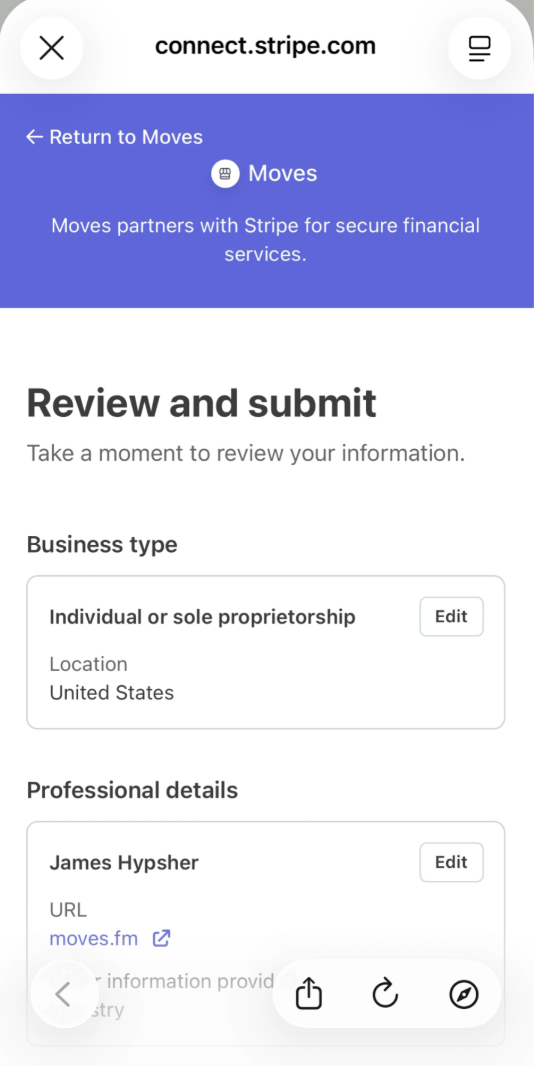 |
| 9. Your Stripe account should now be connected and can earn money for your listings. It may take a few minutes and you may need to close out of the app and re-open it to have the changes reflected. If you have any issues setting up Stripe, reach out to host.support@moves.fm | 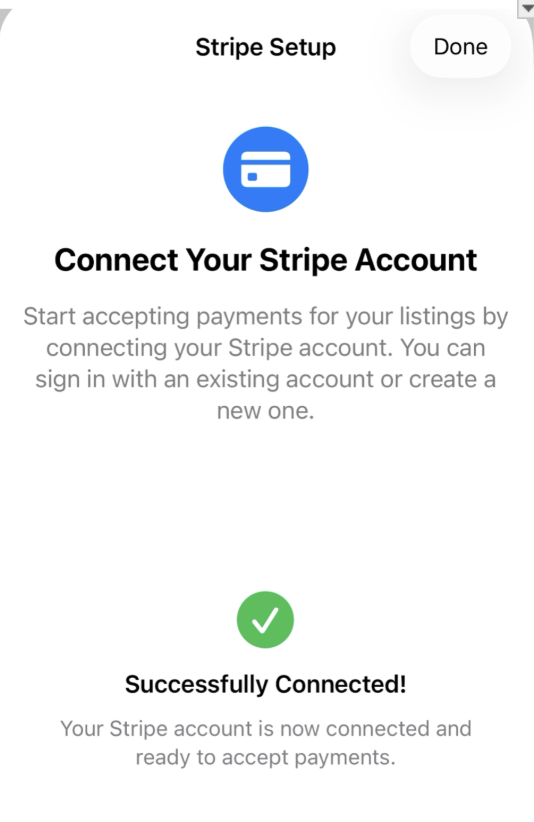 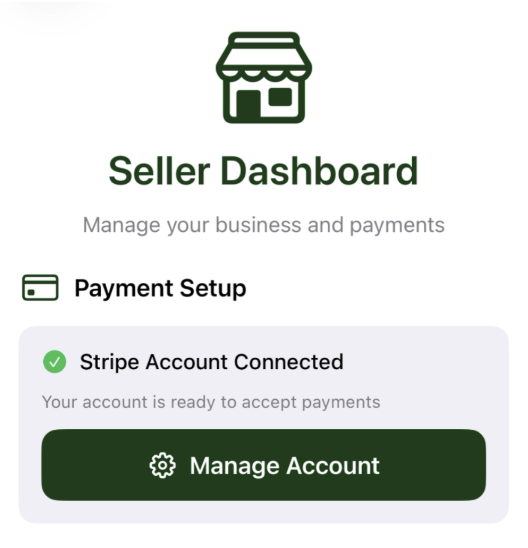 |